Monday, September 6, 2010

Wednesday, August 18, 2010
Make Your Own Handwriting Fonts - Part I
Fed up from usual fonts like Arial, Verdana, Times New Roman? Want something more original? Head to YourFonts.com, it is a free tool for creating fonts online from your own handwriting. The whole process involves 7 easy and clearly explained steps.

You simply download and print provided font template sheet. Fill in each character in your own handwriting and then scan and upload the template on to YourFonts.com. After that you can preview your own font online and if you like it download and use it on your computer. As simple as that.

Features:
- Free font creator for creating fronts from handwriting.
- Create as many fonts as you like.
- Easy to follow seven step process.
- Download and use created fonts no your computer.
- Check out gallery of fonts created by other users.
- Free and no registration.
Sunday, August 15, 2010
Oxymoron !
Below is so interesting !!!!
An Oxymoron : is usually defined as “A phrase in which two words which have contradictory meanings” are brought together…..
- Clearly misunderstood
- Exact Estimate
- Small Crowd
- Act Naturally
- Found Missing
- Fully Empty
- Pretty ugly
- Seriously funny
- Only choice
- Original copies
Tuesday, May 4, 2010
Password protect executable files
Eltima's EXE Password Protector allows you to password-protect any Windows executable file (excluding only system-critical files which influence Windows OS stability), which means that only the person who knows the password will be able to launch the application.
The installation process is a breeze - simple and fast. You are welcomed by this screen:

The screen has two tabs. The left one controls the step-by step process of protecting the executable file(s) of your choice.
Select a file:

Don't forget to tick off the option of creating a backup of the original file if you are prone to forgetting passwords.
Enter the password:

And - voila'! The .exe file is now password protected. Let's test the assertion by pressing the "Test" button. The result? Every time you want to start Firefox, you will be asked to input the password:

If the password is incorrect, the browser won't load. Yes, it's simple as that.
Unprotecting a file is equally easy. Open the right tab, and choose the file:

Enter the password:

You are now free to browse to your heart's content.
It is important to note a few things:
The installation process is a breeze - simple and fast. You are welcomed by this screen:
The screen has two tabs. The left one controls the step-by step process of protecting the executable file(s) of your choice.
Select a file:
Don't forget to tick off the option of creating a backup of the original file if you are prone to forgetting passwords.
Enter the password:
And - voila'! The .exe file is now password protected. Let's test the assertion by pressing the "Test" button. The result? Every time you want to start Firefox, you will be asked to input the password:
If the password is incorrect, the browser won't load. Yes, it's simple as that.
Unprotecting a file is equally easy. Open the right tab, and choose the file:
Enter the password:
You are now free to browse to your heart's content.
It is important to note a few things:
- You can password-protect ANY .exe file on local or network drives, as long as it's on a writable disk (i.e. can be modified)
- You can password-protect ONLY .exe files
- If you copy a protected file on a removable media or on another computer, the file will still be password-protected.
Monday, May 3, 2010
Welcome to Tagxedo, tag cloud with styles
Tagxedo turns words -- famous speeches, news articles, slogans and themes, even your love letters -- into a visually stunning tag cloud, words individually sized appropriately to highlight the frequencies of occurrence within the body of text.
The following are screenshots of Tagxedo, in standard and history views.
-
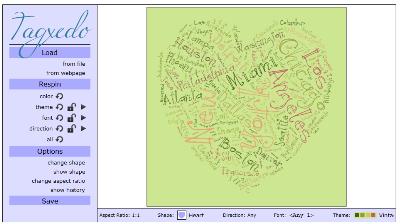
Tagxedo screenshot, standard view
-
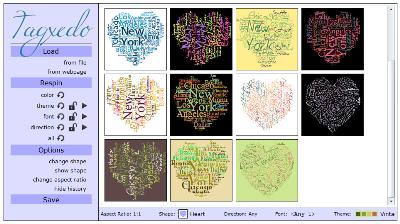
Tagxedo screenshot, history view
A few more examples to show the versatility of Tagxedo, especially how tightly the words hug the shapes. Feel free to click the pictures and play with these examples in Tagxedo. If you like these tag clouds, you must also check out the gallery which has many more candies for your eyes.
-

Abraham Lincoln
-

Bruce Lee
-

All the World's a Stage
-

Michael Jackson
-

UCLA (My Alma Mater)
-

Air Jordan
-

Che Guevara
-
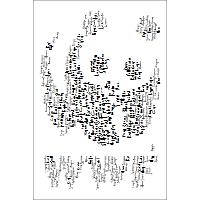
Endangered Animals / WWF
Making word cloud is fun, and is much more fun with Tagxedo! With Tagxedo, you can:
- make tag clouds in real-time, and respin, and respin to your liking
- save the tag cloud as images for printing and sharing
- look at all variants of the clouds in a gallery (see screenshot above), and pick the one you want for further tweaking or saving
- choose from many different fonts
- use local fonts (e.g. downloaded from Font Squirrel or your own hand-drawn fonts)
- quickly switch between different colors and themes
- constrain the cloud to selected shapes (heart, star, cloud, oval, etc)
- use images as custom shapes (e.g. Reddit Alien) [premium feature]
- use words as custom shapes (e.g. "USA", "Love", "Joy", "I LOVE YOU") [premium feature]
Stain Solutions
This post is a little different. I mean, usually I write about tech stuff, software and online tools. Well, this post does cover online resources and tools – sort of. Anyways, I’m positive many of you will find this information helpful, and that’s what this blog is about after all.
I’m sure you’ve all been annoyed with dirt in your home at some point. Now, imagine a stain on your favorite shirt, or mold in the bathroom. What would you do? Call for help ? Noooo! You’re mature and able to survive on your own. So who is always by your side and will never ask intimidating questions? The internet of course!
So thanks to the internet you’re here, which is where you’ll be provided with the tools you need to survive in the household. This is a guide for all the (soon to be) masters and mistresses of the household who may need a little help in the cleaning section. Here you go!
A few things you should keep handy, even if you wouldn’t normally use them, is some liquid soap, baking soda, vinegar, lemon juice, salt and some hydrogen peroxide. You’ll get the latter at a pharmacy. Those are prime ingredients for non toxic, cheap, eco-friendly and effective cleaning solutions. Seriously, you don’t need to waste your money on the expensive stuff!
Time to open up some online resources.
ProcessLibrary : A Great Library of Windows Processes
Have you seen your PC’s performance decline over time? Does your system take a long time to start? ProcessLibrary provides a unique and detailed online database for windows processes. It lists everything that should, and should not be running on your Windows computer. If you want to find out more information about some running processes, PL is the place to go.
Dummy Tip: To view currently running Windows processes go to ‘Task Manager (Ctrl+Alt+Del) >> Processes’

ProcessLibrary Features
- Process Library: Browse huge process directory by process name.
- You can also see ‘Top Searches’, ‘Top Security Threats’, ‘Top New Entries’.
- There are over 9000 entries in ProcessLibrary database.
- Desktop application: Scan and analyze active processes. More details below.
- Follow-up on newly profiled process via feedraeder (RSS / ATOM).
- Multi-lingual: Available in English, Français, Italiano, Deutsch, Español, Japanese.
The most noticeable feature is ProcessScanner. It’s an essential, tiny, easy-to-use downloadable program that scans processes on your system and categorizes them by status, security threat, performance requirements, network usage and source.
Sunday, April 25, 2010
Deticated to My Father : Perfect Dental Patient Unveiled at Showa University in Japan.
Those who had a chance to know more about the job of dentist, the fact that patients can be real trouble for dentists is probably familiar. It is especially hard to find a ‘perfect’ patient to be used in schools for training of new young dentists.
But, Japanese scientists from Showa University decided to create a ‘perfect patient’ which never complains and always obeys instructions. It is robotic patient called Hanako Showa and it will be used for dental treatment training.
I just hope they are not going to get used on perfect patient because in reality they will have to handle a very different kind of patients.


Saturday, April 24, 2010
Google Reader Play: Browse Your Feeds Visually
Google Reader is one of the best apps around to read your RSS feeds and now Google is making it even more fun by introducing the Google Reader Play feature. The play feature lets you browse your RSS feeds visually so you can easily skim through them.
You can choose to browse any subscription or category of feeds in Play by simply clicking the little arrow in front of each subscription and selecting View in Reader Play. While browsing items in GoogleReaderPlay, you can still Star, Like or Share an item. A thumbnail strip shows you previous and next feeds to the one you are currently viewing. Feeds are viewed as a slideshow and clicking on the next or previous arrows provides super easy navigation.


- Browse your RSS feeds visually.
- View them as a slideshow with easy navigation.
- Right click any subscription to view in Play.
- Star, Like or share item from within the slideshow.
- Start/stop slideshow with a single click.
Wednesday, April 21, 2010
Windows Maintenance Tips: The Good, Bad, and Useless

Everybody's got an opinion on how to keep a Windows system running fast and smooth. Some tips are timeless, others are bunk that always recirculate. Here's a closer look at what really helps and hurts your Windows PC.
First up, here's the quick chart version, with the tips you're likely to hear floating around the net and from the mouths of casual IT types; each tip is plotted by its reputation and actual value. (More details for how we assigned these values below.) Click the image for a larger view.

And now a little finer explanation on those points.
Seems Bad, Is Good

These are those tips that seem like they actually kind of suck, but are in reality pretty good for your system.
Sleeping/Hibernating Instead of Shutting Down: Knowing that your laptop is drawing even just a trickle of power can freak out anyone who's had to pay for an expensive battery replacement, so a lot of people think it's always better to shut down your system when you're not using it. If we're talking PCs, the answer to the question of sleep or shutdown depends on how you feel about your electricity bill. For laptops, the issue of battery life and convenience is a sticky wicket. It takes some time and some vigorous hardware use to boot up your system, so if you know you're only stepping away from your system for, say, less than 3 hours, go ahead and close the lid and suspend it, or hibernate your system if you find it faster starting up. If you're going to be away for a solid bit, shut it down. Either way, don't plug it in if you don't have to, and spend more time getting things done than micro-managing your modern battery.

Windows Media Player: Windows Media Player used to be one of the first apps we'd replace on our system. Recently we learned to love the latest version of this built-in app, on the strengths of its performance (no, seriously), its built-in streaming and album art functions, and the fact that, now in its 12th edition, WMP is actually kind of good at what it's supposed to do.
Microsoft Security Essentials: Microsoft's security tools have never been that great—until they released Microsoft Security Essentials, that is. This anti-malware app is entirely free for Windows users, from initial install through every malware definition update. It's just as good at finding bad stuff as the leading commercial products, and it integrates well into your Windows system without adding a whole metric ton of toolbars, badged buttons, and other cruft. And if you follow some other basic security advice, you'll get by just fine, and never see a "reminder" that it's time to pony up for your protection fee.
Not having Windows "Ultimate": When you hear "ultimate", you can only assume it means "this version of Windows is a lot better". Early on, before Windows 7 was even released, Paul Thurrot did a little reverse-engineering of an early release and found that its main difference above "Professional" and cheaper versions was the inclusion of AppLocker, Federated Searches, and some virtual machine tools. Ed Bott summed it up succinctly: Windows 7 Ultimate, for all but the most corporate or IT-versed of users, is an "unnecessary luxury."

Not having "Admin" access: For the savvy user who does a lot of installing and tweaking, having Administrator privileges is just a means to an end. For users who are apt to click on "You've Just Won a Free iPad!", having administrator rights on their user account is a recipe for malware and other bad things. Granting admin access to bad stuff is the cause of up to 90 percent of security flaws, so on a shared desktkop, or a laptop you let your friends and family borrow, killing Administrator privileges might be worth the occasional verbal nagging.
Seems Good, Is Good

Let's call this the Advanced No-Duh section of system maintenance: Those tips that seem like a good idea, and they are. But they're also easy to lose sight of in pursuit of optimization, customization, and other tweaks.
Automating backup to external drive: Because protection from drops, spills, hard drive failure, electrical shorts, accidental deletions, theft, forgetfulness, and other calamities is clearly a good thing. Luckily it's not that hard to automatically back up your hard drive.

Automating backup to a web location: Because protection from fires, floods, acts of God or infants, external hard drive failure, and forgetfulness across two different safety mechanisms is the best thing. Luckily the best online backup tools are easy to use and relatively inexpensive (at least where your important data is at stake).
Install more RAM: Whether in your desktop PC, or skirting Apple Store prices and doing it yourself with a MacBook, adding more RAM can breathe a lot of new life into an old computer. Installing more than 4 GB may not always be worth it, or even feasible in some older systems, but it never hurts to future-proof your system.

Physically clean your system and peripherals: Dust, noisy fans, keyboard crud, and other symptoms of a well-used computer may not actually prevent you from doing work, but they do make using it much more annoying, and possibly less productive. Make your stuff look nicer, work better, and likely run more efficiently by giving it a spring cleaning.
Automating maintenance tools: Like a good backup, the tasks that keep your computer running clean and swift should be done without thinking. Whether it's a self-repairing hard drive, an automatic CCleaner run, or dozens of night-time fix-it jobs, it's not that hard, and the time invested in setting up pays off exponentially in having a worry-free Windows.
Using Revo Uninstaller: Because the Add/Uninstall Programs alternative Revo digs deep, moves fast, and just works. It cleans out cruft, shows you more of the apps you have installed than Windows does, offers auto-starting application disabling, and can even be pointed, sniper-style, at the application you want to kill but don't quite know the name of.
Seems Good, Is Bad

These are the deceptive tips that keep us tweaking our systems, often to our detriment.
Disabling QoS in Windows XP: Rumor had it that Microsoft had permanently tied up 20 percent of your net bandwidth for Windows Update. They didn't, and those who disable QoS, or IPv6, in XP actually end up with some pretty harsh connectivity problems.

Running defragment apps: On Windows Vista and 7, and into the future, the actual need for defragmenting hard drives is almost non-existent, since it's already done automatically. With solid-state drives, there's no need at all, and doing so might actually be harmful to the flash-memory-based devices. Defragging your drive won't likely cause any major harm, but for most of us, at best it's a wash.
Loading Internet Explorer with add-ons: Add-ons aren't necessarily a bad thing in themselves—they can, for instance, make IE act like Firefox. But if you're going to use Internet Explorer, and you're going to use add-ons, expect to see more crashing than normal.
RAM/memory optimizers: The fact that there was a federal investigation, and an article dubbing SoftRAM (and, by extension, its ilk) the "Worst Tech Product of All Time," should say it all. But, heck, let's just say it again. There are smart ways to manage your memory use, but you can't get something (more RAM) out of nothing (colorful packaging). Just because they no longer sell it in stores doesn't mean there aren't still software apps trying to convince you that the laws of physics don't apply inside your computer.
"Trick" Vista into multi-core booting: It's easy to assume Microsoft has done something wrong, isn't it? Like design an entire operating system, even one with a 64-bit version, that doesn't know how to use multiple cores. Heck, we briefly believed it, as did Gizmodo, but it's a sham. You can change how many cores Vista boots up with, but only if you're looking to test single-core operation for your application—otherwise, Vista automatically boots up with what you've got.
Enable SuperFetch in XP: In newer Windows systems, SuperFetch speeds up load times for programs and files. Trying to enable it in XP isn't actually harmful, unless you consider false hope a long-lasting harm. There is no SuperFetch in XP, no matter what Registry setting you tweak.
Clean out Windows prefetching: Another seemingly helpful tip we regret posting, as cleaning out Windows own log of which data to queue up on boot-up does, at best, nothing, and at worst can cause serious delays and problems with booting.

Reinstall Windows regularly: If you were never going to die, spending hours every year re-installing Windows—and, more relevant to most of us, all your applications and settings—would be a harmless move toward efficiency. In reality, though, you don't need to reinstall Windows unless something's gone wrong, because you can automate your backups and maintenance tools to keep it at an even speed and usability, year after year. And tell your Windows-hating geek friends we said so.
Registry "Cleaning": No doubt, the Windows Registry—where Windows keeps track of applications' needs, file associations, and other settings—is a big, unwieldy beast, and it's easily stuffed with leftover crud. If you're having a particular problem with a certain app, a Registry fix can possibly help. But stepping in every so often to "clean" the unnecessary stuff isn't going to speed things up, because Windows is mostly looking for the things it needs on each run, and doesn't, despite your worst fears, spend an entire afternoon browsing the Dead Sea Scrolls of your application installation history. Clean when you need to, but don't spend much time thinking about it.

Disable Shadow Copy or System Restore: Don't do this. You might think it's not necessary, and that you're the Ultimate Backup Maker, but doing so won't speed Windows up, you'll potentially cause problems with certain Windows services, and you'll never know when you'll need System Restore. The other night, I thought uninstalling Bonjour and Apple Application Support was a minor thing—until my Wi-Fi failed to work at all the next morning. Keep System Restore around.
Disable unneeded services: It's one of those nefarious "It depends" deals. There might be some services running on your system that you absolutely don't need, and Microsoft itself recommends checking them out. Just don't kill a service unless you know, specifically, what it provides you and your daily workflow.
Seems Bad, Is Bad
Many of these are downright laughable, but hey—we're just covering our bases here.

Installing lots of alpha apps: One or two early releases of software with a killer new feature? Yeah, sure, go ahead, but try to find a portable, non-install version, if you can. Always picking the alpha/pre-release/dev version of your favorite apps and installing them? It's like having a house made of 1,000 pipes, and you'll have no idea where that hissing leak you hear is coming from, or where it begins.
Type rm -rf / in Cygwin: Actually, any terminal command you see on the internet that someone suggests? If you don't know exactly what it does, and you don't understand the syntax, you're better off skipping it.
"Would you like to install the X toolbar to make searching easier?" Don't be that person—the one keeping Ask.com in business. Always watch during software installation to see what it's asking you to install and "make searching easier."
Drinking while Registry editing: Drinking while near a keyboard in general, really.
Uninstalling apps you don't recognize: As noted above, you might think your computer is cluttered with unnecessary applications, but it's often smarter to just let unnecessary apps age out, rather than find out a crucial network service was tied to a particular app.

Installing software from unverified torrents: Read the comments, think about the source, and run an MD5 checksum before installing anything from the public pool. Alternately: Don't install software from torrents.
Installing software from .ru sites: Would you rather spend 10 minutes finding a free, open-source alternative to what you're looking for, or an entire afternoon trying to recover files and restore your system?
Skipping updates from Adobe or Java: Even if it claims to be just bug fixes, and they feel like they arrive every day, install them, or un-install the product they're for, if you don't like them. It feels like giving in, but you don't want to be shaking your head sadly at a headline involving "exploit" tomorrow.

Monday, April 19, 2010
Universal Viewer - Open Almost Any Files !
Universal Viewer, as its name implies, aims to be a universal file viewer capable of opening almost any file, without making you hunt down required programs for unusual file types.
Universal Viewer supports a wide variety of multimedia, image, and document formats.While it supports opening a truly vast array of file types, it doesn't support Microsoft Office documents unless Office is already installed. Other than that, most files are supported without any special work on your part. Universal Viewer also has a navigation panel, which allows for easier file navigation.
In addition to the file viewing, Universal Viewer also supports additional plug-ins and can convert nearly any document type to friendly old plain text.
Here's a list of formats the app supports out-of-the-box :
The application integrates into Windows Explorer's context menu, so all you need to do is right-click a file and select "Universal Viewer." In addition, it can also be integrated into other popular file managers. Universal Viewer is a freeware application for Windows platforms only. Got a similar tool you use to fill this need, or do you just hunt down and install whatever apps need installing when you need them?Text, Binary, Hex, Unicode: any files, of unlimited size (even 4Gb+ sizes are allowed)
RTF, UTF-8: RTF and UTF-8 encoded texts
Image: all general graphics formats: BMP JPG GIF PNG TGA TIFF... plus all formats supported by IrfanView/XnView external viewers
Multimedia: all formats supported by MS Windows Media Player: AVI MPG WMV MP3...
Internet: all formats supported by MS Internet Explorer: HTML PDF XML MHT...
Plugins: all formats supported by Total Commander Lister plugins
MS Office: all file types of MS Office (if installed): DOC DOCX XLS PPT...
Converters: some types can be viewed as plain text: DOC DOCX PDF PPT ODT...
Controling multiple Windows systems using the keyboard/mouse attached to one computer !
Some people use KVM’s to control multiple machines. These KVM’s are a simple switch that lets you switch control to another physically connected machine. A for the server, B for the desktop and C for your media center. This is OK but not the best setup.
Let’s say I want to copy information from my desktop to my server. I can remote desktop in, use VNC, AAMMY or any number of remote control programs. But what if I want to be able to view both machines at the same time? What if I want to use one keyboard and mouse for two computers.
If you have two or more machines in your home with monitors attached you can now control multiple computers from one single mouse and keyboard. It gets better because you can also share clipboards and wait, Input Director is FREE!.

Input Director’s Website breaks it down like this:
`Before kicking off the installation and configuration of Input Director it’s important to first explain the master/slave terminology used throughout the documentation and application.
The master system is the computer that has the mouse/keyboard that you be using to control it and the other system(s). A slave system is one that can receive input (keyboard and mouse) from a master.
The quick start guide will run though setting up two computers, one as the master, the other as a slave. You need to decide now which computer you will use as the master – that is, which one has the keyboard/mouse that you want to use to control it and the other system (the slave).
For the remainder of the quick start guide, the two Windows systems that Input Director will be installed onto will be referred to as the master and the slave.`
Got it?
Your main machine with the keyboard and mouse that you want to use will be called the MASTER and other machines that you will remote control are your SLAVES.
This application is installed on each computer and you are give a bunch of security options like what computers can control your slave and neat hotkeys to make switching machines a breeze. You can setup a situation similar to multiple monitors with remote machines. You can move your mouse off your screen and right onto the next machine (basically, have multiple computers on one monitor). Even if you have multiple monitors this will still work.
I have used other programs that claim to do what Input Director does – but hands down this is the easiest to make work. It is really easy and if this fits a need that you have I highly recommend it!
Let’s take a look at it.

You first run the setup on the master machine and simply set it as the master machine like seen here:

Then you setup the client machine. Come on back over to the Master machine and tell it where your Slave machine is.

You can now go and configure hotkeys and other goodies but that’s it. You are ready to manage multiple machines from one keyboard and mouse. Next step world domination!
Also, Synergy gives you the ability to manage all of your computers with just one keyboard and one mouse. When properly installed (and configured), you can move from one computer to the other by simply moving your mouse out of the computer screen. You’ll still need a different monitor for every computer, but switching between computers will be as easy as flicking the mouse in the right direction.

Compare it to using 2 monitors on the same computer, where the second screen constantly displays an open VNC connection to your secondary computer. Screens can be arranged in any thinkable order; above, below or next each other. Synergy will also know the difference between two different systems and a dual monitor set-up.
Even unified screensavers and copy-pasting will work between computers !!Thursday, April 15, 2010
Use Incognito Mode to Keep Friends Logged in While Mooching Computer Time
History is used by the browser to enhance your experience on the Internet. When the browser remembers a website you previously visited or the username and password for your favorite web site, this information is considered your history.
However, there may be times when you do not want other users of your computer to see or access such information. For example, if a friend or family member shares your computer, you might prefer for them not to be able to see what websites you've visited or what files you've downloaded.
Also When you're borrowing time on a friend's computer it hardly seems polite to log them out of their favorite services. This clever trick let's you access popular services without having to make your friend log out and back in just to share their browser with you.
It's an ideal fix for the problem. You get to log into all your accounts, you don't inconvenience the computer's owner by logging them out of any sites, and your own logins and browsing history aren't recordedWhen using someone else's computer to check email/social networking, start private browsing (control+shift+p) in Firefox or incognito mode (control+shift+n) in Chrome, so you don't have to log them out from their Gmail or Facebook
Firefox 3.5 and later provide "Private Browsing," which allows you to browse the Internet without Firefox saving any data about which sites and pages you have visited.
Note: Private Browsing prevents information from being recorded on your computer. It does not make you anonymous on the Internet.
What Private Browsing will not retain
- Visited pages: No pages will be added to the list of sites in the History menu, the Library window's History list, or the Awesome Bar address list.
- Form and Search Bar entries: Nothing you enter into text boxes on web pages or the Search bar will be saved for Form autocomplete.
- Passwords: No passwords will be automatically filled in during the your Private Browsing session, and no new passwords will be saved.
- Download List entries: No files you download will remain in the list in the Downloads window after you turn off Private Browsing.
- Cookies: Cookies are files created by websites that store information on your computer, such as your preferences when visiting a certain site. These will not be stored. For more information on cookies, see Cookies.
- Web cache files: No temporary Internet files or cached files from web pages will be saved until you turn off Private Browsing.
Note:
- If you create new Bookmarks while using Private Browsing, they will not be removed when you stop Private Browsing.
- If you save files to your computer while using Private Browsing, those files will not be deleted when you stop Private Browsing. However, any files you open in an external application will be cleared from the system's temporary folder, and none of the files you download will appear in the Downloads window list.
Turn on Private Browsing
To start a Private Browsing session:
- Click on the Tools menu and select Start Private Browsing.

- The first time you turn on Private Browsing, Firefox will alert you that it will save your current windows and tabs for after you finish using Private Browsing. Click on to continue.

- Put a check mark next to "Do not show this message again" if you do not want to receive this alert the next time you turn on Private Browsing.
- You will then enter Private Browsing mode, and the Private Browsing information screen will appear.

When browsing in Private Browsing mode, the Firefox window's title will show (Private Browsing) during your session.
Turn off Private Browsing
Watch a video of these instructions
To end a Private Browsing session:
- Click on the Tools menu and select the Stop Private Browsing entry.

- The windows and tabs you were using when you enabled Private Browsing will appear, and you can use Firefox normally. The Firefox window's title will no longer show (Private Browsing) when Private Browsing is off.
Always start Firefox in a private browsing session
There is a setting in the Options window which will automatically enable Private Browsing whenever you start Firefox.
- At the top of the Firefox window, click on the Tools menu, and select Options....
- Select the Privacy panel.
- Set Firefox will: to Use custom settings for history.

- Click to select Automatically start Firefox in a private browsing session.

- Click to close the Options window
Subscribe to:
Posts (Atom)